

Passwords in the Active Directory Description Field: Why It Is Dangerous
Any domain user can read a password stored in the description of an AD account. We show the risk with an example and how to fix it step by step.
“Backup service, password: Summer2019!” – a line like this sits in the Description field of a user account in a surprising number of Active Directory environments. It is well meant: the colleague who touches the account later should find the password quickly. For an attacker, it is a gift. The field is not a protected vault but a plain-text field that, by default, any domain user can read.
This guide explains why the pattern is so dangerous, how an attack using it unfolds in practice, how to check your own environment safely and what to use instead.
Why the description field is not a safe place
The description attribute is part of the general information of an AD object. In a default configuration, any authenticated domain account may query this information via LDAP. It takes no administrator rights and no access to a server. An apprentice's account, an intern's account or an account that attackers took over through phishing is enough.
This applies to more than the description. The Notes field (attribute info) and other free-text fields can be queried the same way. A password stored there is effectively published to every domain account.
Three properties make it worse:
- No protection at rest: The text sits readable in the AD database (
ntds.dit), in replicas on every domain controller and in backups. - Hardly noticeable: An LDAP query across all users looks like normal administration. Without targeted monitoring, nobody notices it.
- Long lifetime: Nobody maintains the field. The password often stays there for years, even when the service runs differently long ago.
The technique has been well known in the security industry for a long time. MITRE lists storing and finding credentials in insecure places as technique T1552 “Unsecured Credentials”. The Metasploit penetration-testing framework ships a module that searches exactly these fields for the term “pass” (Rapid7: Active Directory User Comments). Attackers do not have to reinvent anything.
Practical example: from a phishing click to a ransomware attack
The following scenario is constructed, not a report about a specific customer. It does reflect how publicly documented incidents typically unfold, for example the case The Register described in June 2026.
Starting point: A company with about 60 workstations, one Windows domain and a service account svc-backup for data backup. During setup, the administrator at the time wrote the password into the description so a stand-in could find it. The account belongs to a highly privileged group because the backup software otherwise could not reach all servers.
Step 1 – Entry: Someone in accounting opens a convincing invoice email and enters their credentials on a fake sign-in page. The attacker now holds an ordinary user account without special rights. How to recognise such emails is covered in our guide Recognising phishing at work.
Step 2 – Reconnaissance: With this account the attacker queries the directory, downloads the user list including descriptions and searches for keywords such as “pass”, “pw” or “password”. This takes seconds.
Step 3 – Hit: The search returns svc-backup with its plain-text password. The attacker signs in with it and now holds the rights of a highly privileged account. No malware, no exploit, no software vulnerability: just a configuration that anyone could read.
Step 4 – Damage: With those rights the attacker deletes the backups, distributes encryption software to the servers and demands a ransom. The backups that should have helped in an emergency are gone. Why separate, tested backups matter so much is described in our backup strategy for small businesses.
The core of the example: the weakness was not technically complicated. It was a habit. That is exactly why it can be removed with manageable effort.
Why passwords end up there in the first place
In consulting, the pattern comes up for the same reasons again and again:
- Service accounts without password management: Backup, scanners, monitoring or applications have an account whose password “has to be written down somewhere”.
- Initial passwords for new employees: The help desk briefly notes the initial password in the account and forgets to remove it.
- Shared and functional accounts: Terminal server, kiosk or shift accounts that several people use.
- Time pressure and handovers: Whoever creates the account documents quickly. Whoever takes it over later finds the information where it happened to be.
- Lack of awareness: Many do not realise that domain users can read this field.
Carelessness is rarely the cause. Usually there is simply no better place to store it that works just as fast in daily work.
How to check your environment
A read-only query checks your inventory in a few minutes. Run it with an administrator account in an administrative PowerShell (module ActiveDirectory). The commands change nothing; they only read.
# Users with suspicious terms in description or notes
Get-ADUser -Filter * -Properties Description, info |
  Where-Object { $_.Description -match 'pass|pw|pwd|kennwort|zugang' -or
                 $_.info        -match 'pass|pw|pwd|kennwort|zugang' } |
  Select-Object SamAccountName, Description, info

# The same for all object types (computers, groups, contacts)
Get-ADObject -LDAPFilter "(|(description=*pass*)(description=*kennwort*)(info=*pass*)(info=*kennwort*))" `
  -Properties description, info |
  Select-Object Name, ObjectClass, description, info
Three notes:
- The result list is itself confidential. It may contain passwords. Do not store it in tickets, chats or emails, and delete it after the review.
- A keyword search does not find everything. A password does not always appear next to the word “password”. Also review service accounts and accounts with long descriptions by hand.
- An empty result is no all-clear. It does not rule out passwords in files, scripts or wikis, which many companies also have.
If you found something: the right steps
The most common mistake: the description is deleted and the matter counts as done. That is not enough. The password was readable by all domain users for an unknown period.
- Change the password, then remove the text. Treat every password you found as known. Set a new, long, random password and update the places where it is stored (service, scheduled task, script).
- Review the account's rights. Does
svc-backupreally need domain administrator rights? Grant only what the service needs, and block interactive sign-in for service accounts where possible. - Look at recent sign-ins. Are there unusual sign-in times or source systems for the account? If you suspect misuse, the incident belongs in your emergency process, as described in our IT emergency plan.
- Fix the cause. Make sure there is a better place to store credentials in future, otherwise the field fills up again.
Better alternatives for everyday work
| Use case | Instead of the description field | Note |
|---|---|---|
| Service accounts for server services | Group Managed Service Accounts (gMSA) | Windows manages and rotates the password itself. Nobody has to know it. |
| Local administrator accounts on PCs and servers | Windows LAPS | Each device gets its own regularly changing password, retrievable only by authorised administrators. |
| Applications that do not support gMSA | Team password manager, e.g. Managed Password | Long random passwords, role-based access, traceability. |
| Initial password for new employees | Random one-time password with “User must change password at next logon” | Hand it over separately from the account, never inside the account. |
| Documenting what an account is for | Description field with purpose, owner and ticket number | The field stays useful, just without credentials. |
A gMSA does not suit every piece of software. Whether your application supports it is stated in the vendor's documentation. Where it does not, a password manager with long random passwords is the sensible choice.
Rules that solve the problem for good
Technology is one half. For the pattern not to return, you need a clear rule:
- One line is enough: “Credentials never go into AD fields, tickets, emails or documents. They live in the password manager, in a gMSA or in LAPS.”
- Accountability: Every service account has a named owner.
- Regular review: The script above runs at least once a quarter and after every administrator change.
- Keep permissions in view: Module ORP.4 of the BSI IT-Grundschutz Compendium describes requirements for identity and access management (ORP.4, in German). Clean handling of credentials also helps with NIS2-related requirements.
How to handle passwords in the company in general is covered in our guide to password security at work.
Frequently asked questions
Who can read the description of an AD account?
In a default configuration, every authenticated account in the domain, regardless of its rights. That includes accounts of interns, externals or accounts taken over through phishing. No access to a server is needed.
Is deleting the text in the description field enough?
No. The password was readable by all domain users until then and may long since be in backups or with an attacker. Change the password first and then remove the text. Also review the account's sign-ins.
Is the Notes field safer than the description?
No. The Notes field (attribute info) can be queried the same way. No AD free-text field is suitable for credentials.
How do I find such entries without taking a risk myself?
With a read-only query as in the section “How to check your environment”. Run it with an administrator account, treat the output as confidential and delete it after the review. If you are unsure, have an IT service provider do the check. Our IT security check reveals gaps in areas such as permissions and password policies.
What do I use for service accounts instead?
If the software supports it, a gMSA: Windows manages the password itself. For everything else, a password manager with a long random password and access only for authorised people. For local administrator accounts on PCs and servers, Windows LAPS is the intended route.
Do we have to report such a finding?
That cannot be answered in general. A password in the description field alone does not automatically trigger a reporting duty. If there are signs of actual access or data leakage, check whether a report under GDPR or NIS2 is required. Involve your data protection officer or seek legal advice.
How often should we check?
At least once a quarter, and additionally whenever administrators change, after major changes to the domain and after security incidents.
Conclusion
A password in the description field is one of the simplest weaknesses an attacker finds with any domain account, and one of the simplest you can remove yourself. Check your environment, replace any passwords you find and give service accounts and local administrators suitable password management. With one simple rule and a quarterly check, the problem stays solved.
If you would like support checking your Active Directory environment, get in touch: we will look at it together with you, vendor-neutral and with a sense of proportion. An overview of our services is available under IT security.
Sources
- MITRE ATT&CK: T1552 Unsecured Credentials
- The Register: “All the passwords were stored in Active Directory description fields” (June 2026)
- Rapid7: Metasploit module “Windows Gather Active Directory User Comments”
- Microsoft Learn: Windows LAPS overview
- Microsoft Learn: Group Managed Service Accounts overview
- BSI IT-Grundschutz Compendium: ORP.4 Identity and access management (German)
Related content
Managed Password
Our secure password manager database for your team.
from €8.00/month per userAll prices net plus statutory VAT.
Discuss your security needs: Managed Password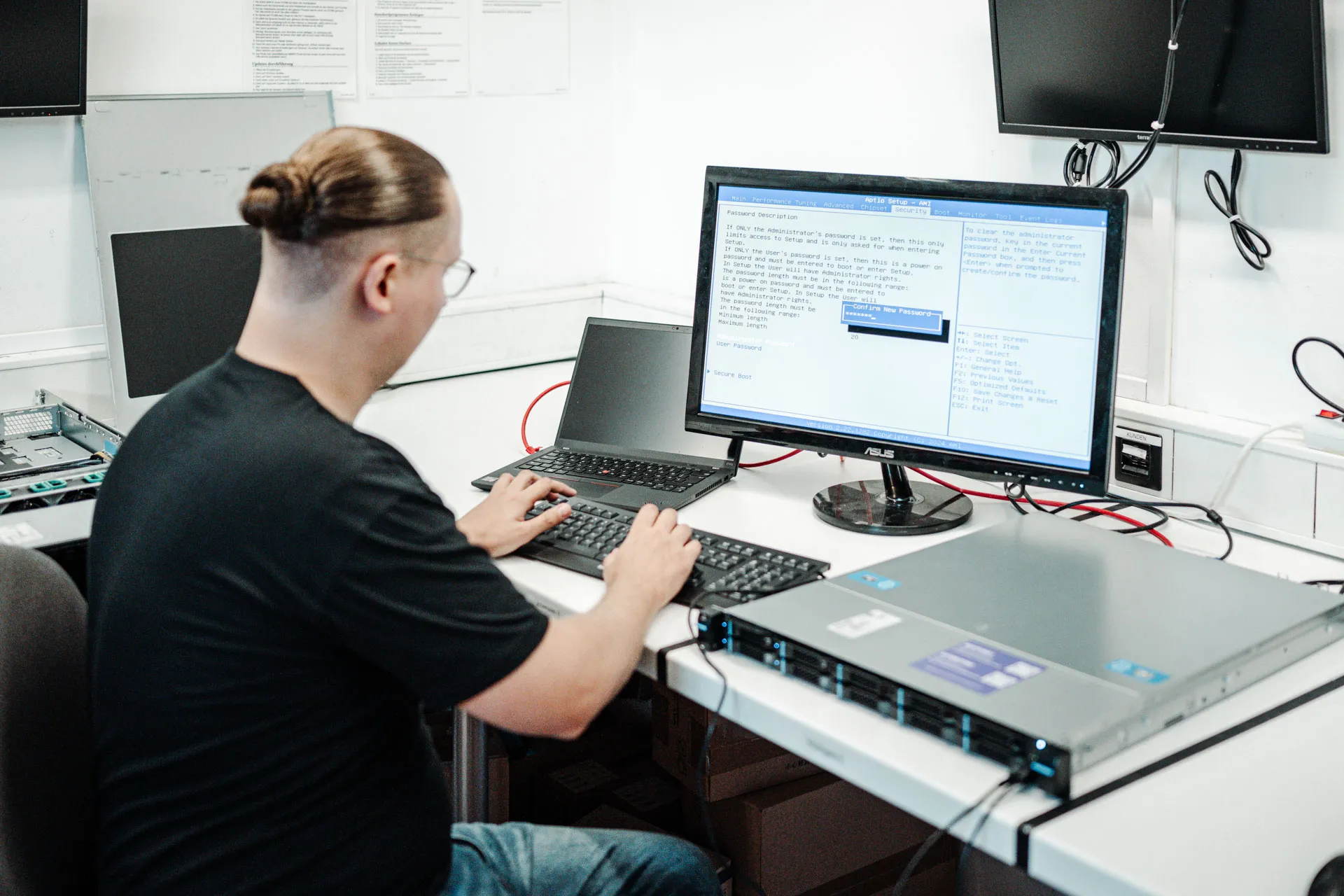
IT Security
Protection against cyber attacks – firewalls, e-mail security, endpoint protection and awareness.
More guides
Making Email Security Work for Your Business
Email remains the most common attack vector. How SPF, DKIM, and DMARC protect against spoofing, and which organizational measures complete the picture.

IT System Monitoring: Spotting Problems Earlier
Outages usually announce themselves before they become visible. How proactive monitoring of servers, network, backup, and security catches problems before they turn into emergencies.
read more : IT System Monitoring: Spotting Problems Earlier →
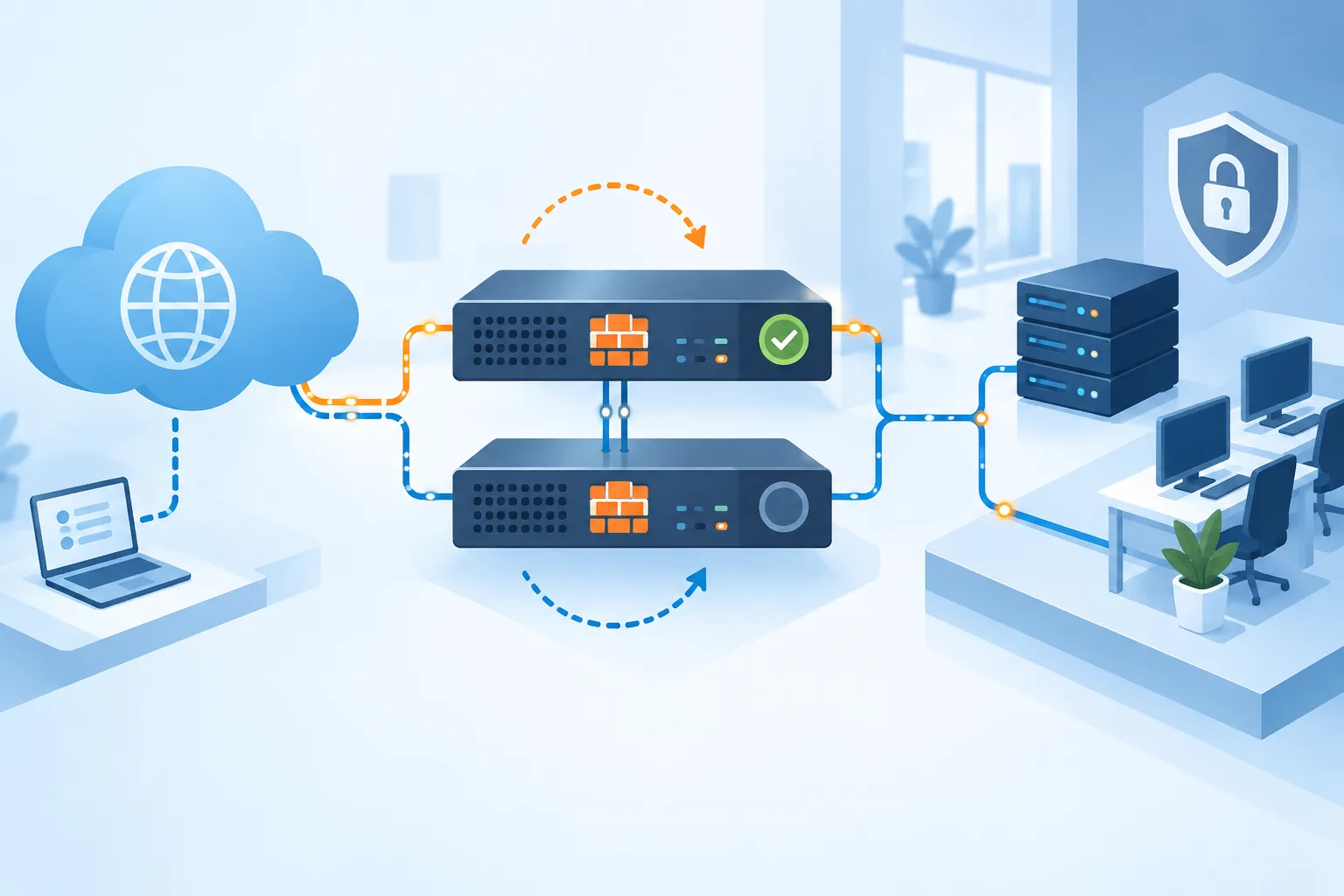
Firewall Clusters: Comparing High-Availability Firewall Solutions
What a firewall cluster is, why businesses need one - and how UniFi, Securepoint, and Sophos each solve high availability at your internet gateway.
read more : Firewall Clusters: Comparing High-Availability Firewall Solutions →